Posts
You schedule it once and it goes out on every network.
Posts is Bephic’s calendar for Instagram, Facebook, Threads, TikTok and your Google Business Profile. You write, pick the photo and the time, and Bephic posts it.
What Posts is
Posts is where you plan what goes out on your networks. It has four tabs: Calendar, Queue, Drafts and Results.
You write once, choose which networks it goes out on and at what time, and Bephic posts it for you in the shape each network asks for. It works with Instagram, Facebook, Threads, TikTok and your Google Business Profile.
Your whole week, on one calendar
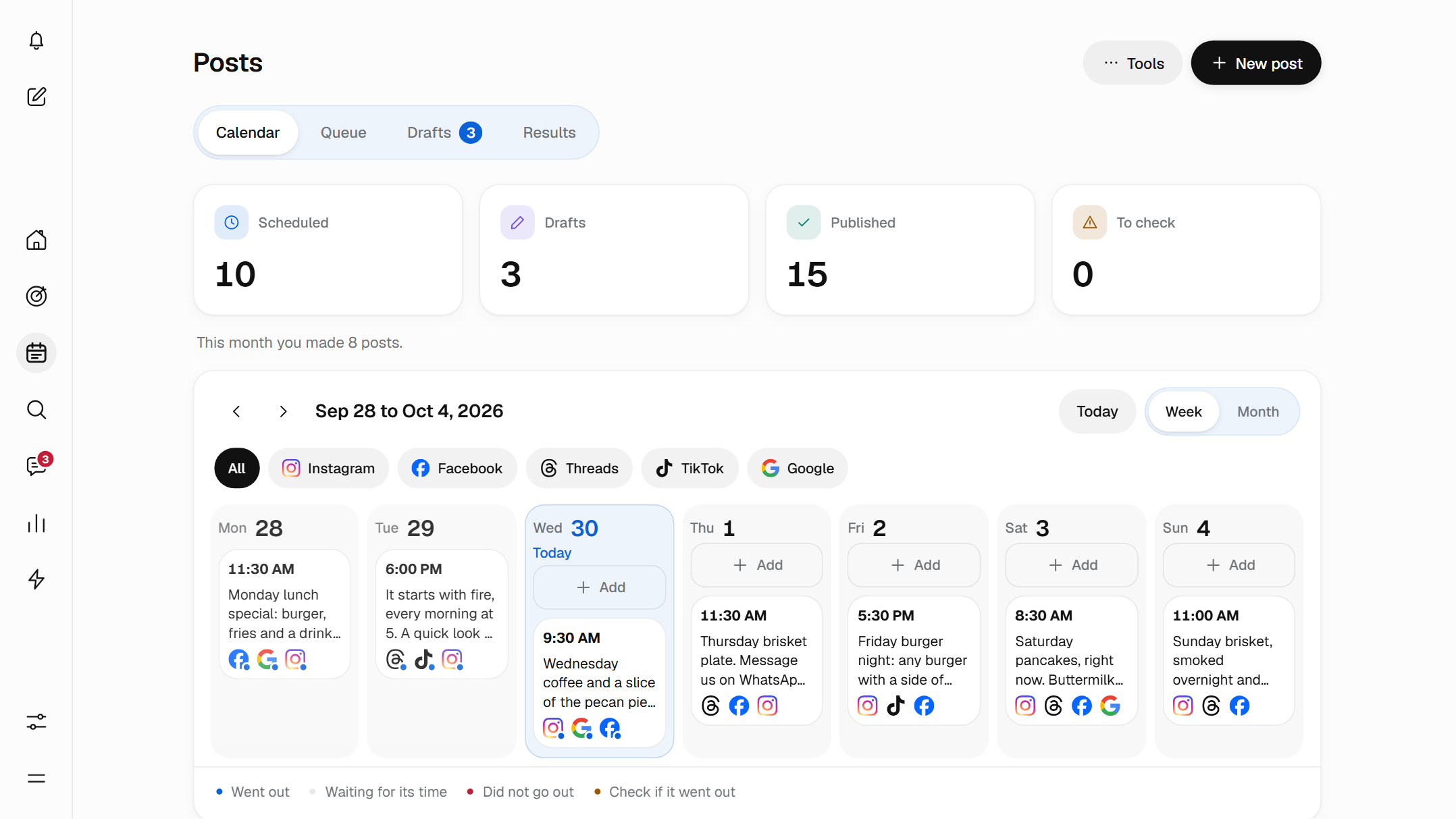
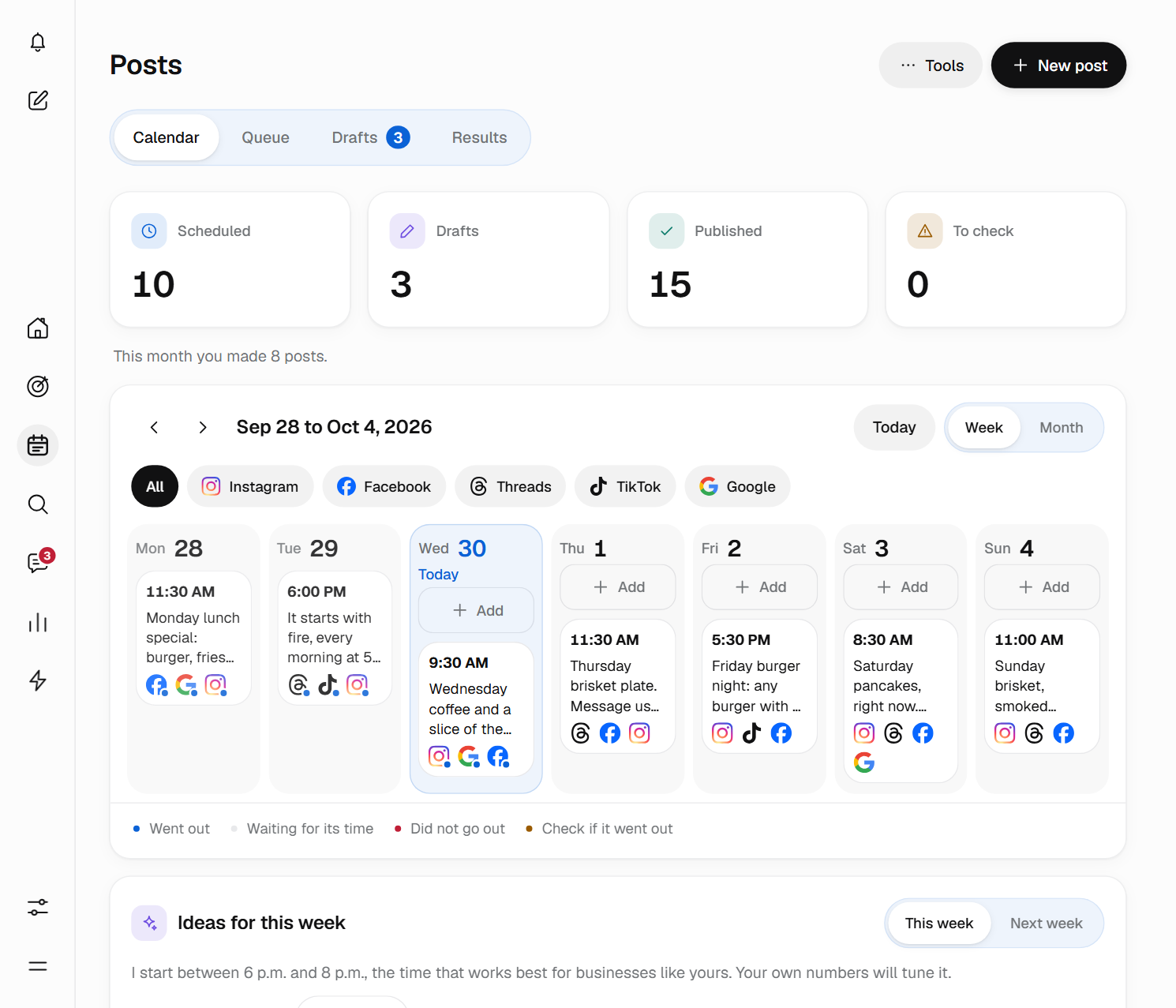
You see the week or the month and filter by network: All, Instagram, Facebook, Threads, TikTok or Google. To change a post’s day, you drag it.
At the top, four numbers say how many are Scheduled, how many are Drafts, how many are already Published and how many are left To check. Below the calendar, a dot on each network’s logo says how it is going there: Went out, Waiting for its time, Did not go out or Check if it went out.
One photo, several networks, just once
You upload the photo and choose where it goes out and at what time. If you want a different text for one network, you write it just for that one; the others keep the text for All networks.
- One photo, a carousel or a videoUp to 10 photos in a carousel. You crop the photo to each network’s shape and add light, contrast or a text on top.
- Up to a year aheadAnd you can repeat it every day, Monday to Friday, every week, every two weeks or every month.
- Check by networkBefore you schedule, Bephic counts each network’s letters, hashtags and photo shape, and tells you what to change.
Sunday, 11:30 a.m.Schedule

One photo of yours and the week is ready.
If you do not know what to write, Bephic suggests
Next to the text you press “Write it for me” and Bephic suggests 3 texts. You press “Use” on the one you like and change it however you want.
On a paid plan, it writes them from your photo and from what you have posted before. On the free plan, from templates.
- It never makes up a priceIf you did not give it one, it does not write one.
- You decide when it goes outThe text stays in your post so you can review it and schedule it.
Ideas for this week
Every week, below the calendar, Bephic suggests posts: the day and the time, what they are about, a ready text and the photo worth taking. With “Make it” the post opens already prepared.
If you do not have the photo yet, you press “Remind me the day before” and the bell reminds you. The times start from what works for businesses like yours and adjust to your own results.
If you turn it on in Permissions, Bephic plans your week and posts what it wrote. If not, nothing goes out unless you schedule it.
How it goes out on each network
Each network accepts different things. Bephic knows each one’s rules and tells you before you schedule if something does not fit.
- Post, Reel or Story. It always carries a photo or a video. Up to 2,200 characters, 30 hashtags and 10 photos.
- Photos or a video, with a first comment if you want, and as much text as you need.
- Threads
- Texts of up to 500 characters, with a photo or without one.
- TikTok
- A photo or a video. You choose who can see it and whether it is a commercial post.
- Up to 1,500 characters on your Business Profile, with a photo or without one.
Videos are part of the paid plans: MP4 or MOV up to 90 seconds (Instagram and TikTok ask for at least 3), and stories up to 60. With “Make a Reel from my photos” you pick 3 to 6 photos and Bephic puts them together in a vertical video. On the free plan you post photos.
A queue that always has something
In the Queue tab you set your fixed times for the week, for example Monday, Wednesday and Friday at 9 in the morning. What you send with “Add to queue” goes out in the next free slot, without you choosing each post’s time.
If you turn on “Publish it again” on something that never goes out of date, like your hours or your menu, it goes out again when the queue empties. And if you prefer Bephic to choose, “Use my best times” sets your times for you.
With a team, nothing goes out without your approval
If you work with a team, you turn on “Ask for approval before posting” in the post settings. Your team presses “Ask for approval” and the owner or an admin presses “Approve” or “Ask for changes”.
Each post has Comments for talking with your team; those comments are not posted on any network. If you need to stop everything, “Pause all posts” stops what is about to go out until you press “Resume posts”.
If a network fails, you find out
Each network has its own status: Instagram can say “Went out” while TikTok says “Did not go out”. When a network does not answer or reaches its daily limit, Bephic tries again on its own and tells you at what time. If it still does not go out, the post is marked and you are told.
What each post says
- Scheduled
- It has a day and a time, and waits.
- Published
- It went out on all its networks.
- Partly out
- It went out on some networks and not on others.
- Did not go out
- It did not go out on any network.
- Check if it went out
- The network never confirmed. Look for it on the network and, if it is not there, schedule it again. Bephic does not retry it on its own so it does not post it twice.
- Paused
- It is held by your plan or by a network, and the panel tells you why.
What each post achieved
In Results you see how many you posted, how many people they reached and how many interacted, and how many people wrote to you or bought from you after seeing one. You choose 7, 30 or 90 days, and each number is compared with the previous period.
- Best times to postA map of when it works best for you. It starts with a general estimate and adjusts to your own results.
- Your best postsThe ones with the most reach and interactions, the best first.
- Answer whoever comments a wordYou choose a word, for example PRICE, and whoever comments it on Instagram or Facebook gets a message with your WhatsApp.
The numbers for reach, interactions and clicks come from each network. Bephic does not make them up.
Start in three steps
Posts works the same on a computer and on a phone. There are three steps.
- Connect your networksYou connect Instagram, Facebook, Threads, TikTok or your Google Business Profile from the panel, with your permission. Without a connected account, Bephic posts nothing on it.
- Create your first postYou press “New post”, upload the photo, choose where it goes out and, if you want help with the text, “Write it for me”.
- Schedule itYou pick the time, or “Next queue slot” if you use the queue. You will see it on the calendar with each network’s logo.
Questions about Posts
Which networks can I post on?
On Instagram, Facebook, Threads, TikTok and your Google Business Profile. One post can go out on several at once, with a different text for each network if you want.
How far ahead can I schedule?
Up to a year. And you can repeat it every day, Monday to Friday, every week, every two weeks or every month, until the date you choose.
Does Bephic post without asking me?
No. What the AI writes never goes out on its own: you review it and schedule it. Only if you turn it on in Permissions does Bephic plan your week and post what it wrote.
Does Bephic write the text for me?
Yes. Next to the text you press “Write it for me” and it suggests 3 texts. On a paid plan it writes them from your photo; on the free plan, from templates. It never makes up a price.
Can I upload videos?
Yes, on the paid plans: MP4 or MOV up to 90 seconds (Instagram and TikTok ask for at least 3) and stories up to 60. On the free plan you post photos.
What happens if a network fails to post?
If a network does not answer or reaches its daily limit, Bephic tries again on its own and tells you at what time. If it still does not go out, the post is marked and you are told.
Can I post on the free plan?
Yes: on every network you connect and on your Google Business Profile, with photos and texts from templates, up to a monthly limit of posts. Each network counts: a post on Instagram, Facebook and TikTok is 3.
Can I work with my team?
Yes. If you turn on “Ask for approval before posting”, what your team writes waits for the owner’s or an admin’s approval, who presses “Approve” or “Ask for changes”.
Get the week ready in one sitting.
Connect your networks, upload your photos and have everything scheduled before Monday.