Product
Automations: a catalog ready to switch on
Automations brings together in one catalog what Bephic can do on its own for your business, organized in three groups: Answer messages, Answer on TikTok and Get more customers. You choose what you want it to do, write the message once and switch it on. From then on, every answer goes out with the rules you approve.
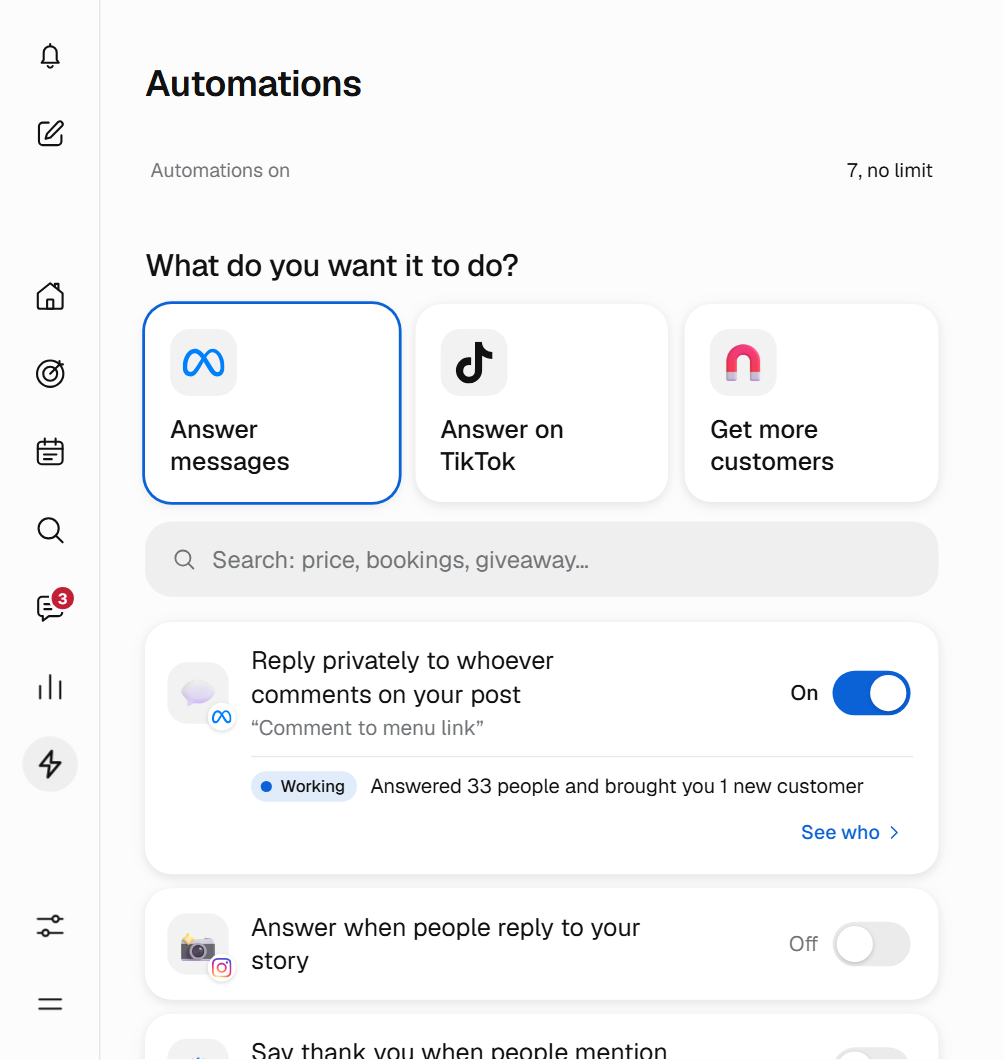
Answers for what people always ask
The Answer messages group works on Instagram, Messenger, WhatsApp and Threads, and answers what your customers write every day. A few examples:
- Comment reply with a link. Whoever comments on your post or reel with a word, like “price”, gets your message privately right away, with your link if you added one.
- Story replies. Whoever replies to one of your Instagram stories gets your message in their inbox. You can answer everyone or only those who write a word, like “order”.
- Keyword reply. Up to 20 words, like “hours” or “how much”. It answers even when the message has more text.
- Welcome and away reply. The greeting goes out only the first time someone writes to you on that network. The away note goes out when nothing else answered, at most once a day per person.
- Chat menu. Up to 20 buttons, like “Hours” or “Orders”, that answer something or open a link.
The Answer on TikTok group greets whoever opens your chat, answers by keyword within 48 hours of the message and offers up to 3 ready questions to tap, depending on what TikTok allows in your country. On Threads, Bephic answers under the comment, in public, and can hide comments with insults.
Bookings, giveaways and tests to get more customers
With booking by chat, you choose the days, the hours, how long each appointment lasts and how many people you see at once. When someone writes one of your words, like “appointment”, Bephic offers them only the free times and saves the booking.
A giveaway on Instagram can run for up to 90 days. Bephic notes each entrant only once and, at closing time, draws the winners at random, with a fingerprint that lets anyone check later that the result was not changed. In an A/B test, half the people get message A and the other half message B, and you keep the one that works. The chat link and its QR code take people to your WhatsApp, Instagram or Messenger, and the QR code downloads ready to print.
Switching one on means answering three questions
You tap the automation's row and its sheet opens. Under Where? you choose the chats, under When? what sets it off (for example, your keywords) and under What do you say? you write the message the way you would say it in person. Next to it you see This is what your customer will see. Then you press Switch on, or Save without switching on if you do not want it working yet.
You change the message whenever you want with Save changes. When you switch it off it stops acting, but it keeps its message and its settings. If you do not know which one to pick, type what you want in the search box, like “price” or “bookings”, or ask the assistant to set one up for you. Each one tells you in one word how it is doing: Working, Still learning or Not working.
Limits that look after your customers
These rules apply on every plan and you do not have to set them up:
- No more than five automatic messages a day to the same person.
- From 10 pm to 8 am, in the customer's time, scheduled messages wait until morning. Answers to someone who just wrote do go out.
- Anyone who replies STOP stops getting automatic messages, without you having to do anything.
- On Instagram and Messenger, messages go out only within 24 hours of the person's last message, and each comment gets only one private message.
If someone reports your messages or Meta blocks sends, Bephic pauses your automatic messages to look after your account and tells you why. The free plan has a limit on automations on at once; paid plans have more. Bephic does not charge per message, and the panel warns you on the automations that may have a cost from WhatsApp. See all the limits and rules.
How to get started
Connect the network where you want it to answer. An automation does not switch on until it is complete and its network is connected, and if something is missing the panel tells you what. See Connect your networks.
Then open Automations in your panel and start with the comment reply with a link: you choose the word, write the message and switch it on. The guide How automations work explains each group, and the Automations page shows everything they do.